
Image Hotspot Questions and Click Heatmaps in Sentink
Let respondents click on an image and see every click as a heatmap. Use Sentink image hotspots for packaging, ad, UX and shelf testing.
TL;DR
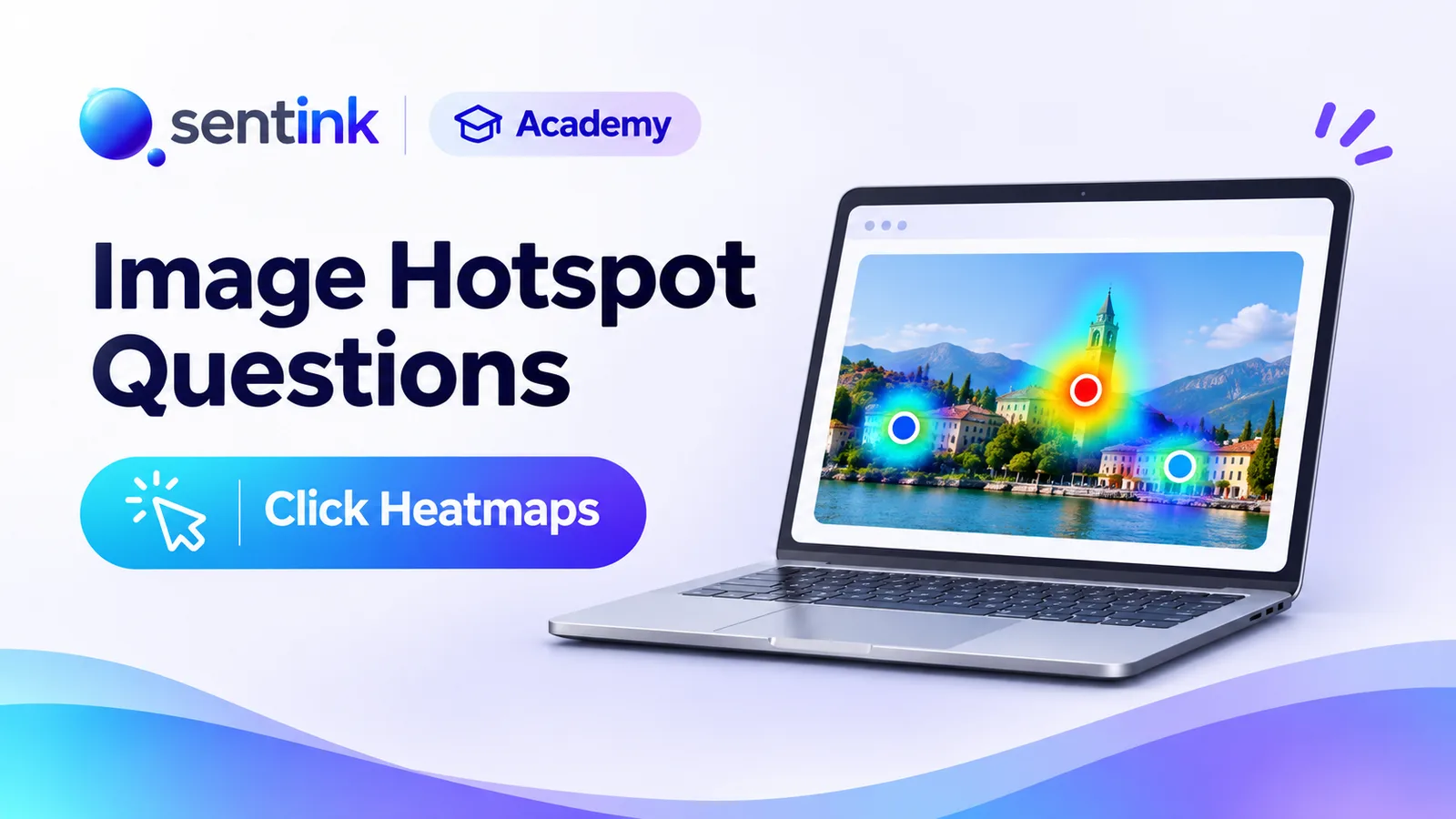
Sentink's Image hotspot question shows an image and lets respondents click anywhere on it, with one or several markers. Each response shows the image with its markers, and Visual Insights overlays every click as a heatmap that follows your filters. It works in English and Arabic, on the web and in the Sentink Field app.
Key takeaways
- Respondents click anywhere on an image; there are no predefined areas to steer answers.
- Allow one marker (a new click moves it) or several markers per respondent.
- Each individual response shows the image with that respondent's markers.
- Visual Insights overlays every click from completed responses as a heatmap.
- The heatmap follows your active data view, so you can compare segments with filters.
- Hotspot questions work in English and Arabic and in the Sentink Field app.
Some questions are easier to answer by pointing than by writing.
Ask people in words what catches their eye on a pack shot, which part of an ad they noticed first, or where they would tap on a screen, and you get vague, hard-to-compare answers. Show them the image and let them click on it, and you get precise, visual data you can see at a glance.
That is what the Image hotspot question in Sentink does. Respondents click a point on an image, and Sentink turns every click into a heatmap in Visual Insights.
What Is an Image Hotspot Question?
An image hotspot question shows respondents an image and asks them to click on a spot — for example:
- "Click on the area you like most."
- "Click where you would expect to find the price."
- "Click on the first thing you noticed."
- "Click on the part of the shelf you would reach for."
Each click is stored as a position on the image, so responses can be compared directly and plotted together.
Unlike an image choice question, there are no predefined areas: respondents can click anywhere. This makes hotspot questions ideal for exploratory questions where you don't want to steer the answer.
Setting Up the Question
Add Image hotspot from the question toolbox in the survey builder, then:
- Add your image — a pack shot, advert, web page or app screenshot, shelf photo, store plan or map
- Write the question — tell respondents exactly what to click on
- Choose how many markers each respondent can place
One click or several
By default, each respondent places one marker. If they click again, the marker moves to the new spot — perfect for "click on your favourite area" questions.
You can allow several markers instead — for example "click on up to three things you would change". When a respondent reaches the limit, the oldest marker is replaced by the newest one.
The Respondent Experience
Respondents see a short instruction — "Click on the image to place a marker" — above the image, and a marker appears wherever they click. The image scales to the screen, so the question works on desktops, tablets and phones.
The question is available in English and Arabic. Click positions are stored relative to the image itself, so results stay consistent whether the survey runs left-to-right or right-to-left.
In the Sentink Field app
Hotspot questions also work in the Sentink Field mobile app for face-to-face and offline data collection. Respondents tap on the image, and a Clear markers button lets them start again.
Seeing Each Response
When you open an individual response, Sentink shows the image with that respondent's marker(s) on top, plus the position of each point. It's an easy way to check answers or pick out examples for a presentation.
Heatmaps in Visual Insights
The real power of hotspot questions appears when you look at everyone together.
On the Results page, the Visual Insights tab overlays every click from completed responses onto the image as a heatmap. Warm areas show where clicks cluster, and individual click points are marked so you can see the spread. A caption tells you how many clicks are plotted.
Filter by audience
The heatmap follows your active data view, so you can apply filters and compare segments — for example, where women clicked versus men, or new customers versus existing ones.
When to Use Image Hotspots
| Research area | Example question |
|---|---|
| Packaging tests | "Click on the part of the pack that grabs your attention first." |
| Advertising and creative | "Click on anything in this ad that you find confusing." |
| UX and website testing | "Where would you click to start a return?" |
| Retail and shelf research | "Click on the product you would pick up." |
| Store and venue layouts | "Click on the area of the store you visit most." |
| Maps and locations | "Click on the neighbourhood where you live." |
| Real estate | "Click on the room you would change first." |
Tips for Better Hotspot Data
- Use a clean, high-resolution image so respondents can see details clearly on small screens
- Ask one clear thing per question — "most appealing" and "most confusing" belong in separate questions
- Keep to one marker unless you really need several; single clicks make heatmaps easier to read
- Follow up with an open question — "Why did you click there?" — to understand the reason behind the click
- Compare segments with filters to find differences between audiences
Getting Started
- Open your survey in the builder
- Add an Image hotspot question from the toolbox
- Add your image and write a clear instruction
- Choose how many markers to allow
- Preview, publish, and open Results → Visual Insights to see the heatmap
Image hotspot questions are part of the Sentink survey builder and work in English and Arabic, on the web and in the Sentink Field app.
FAQ
Can respondents click more than once?
Yes. By default each respondent places one marker, but you can allow several. When the limit is reached, the newest marker replaces the oldest.
Do I need to define clickable areas?
No. Respondents can click anywhere on the image, and every click is stored as a position on the image.
Where do I see the heatmap?
Open Results and go to the Visual Insights tab. The hotspot question shows every click from completed responses as a heatmap over the image.
Does it work on mobile and in Arabic?
Yes. The image scales to the screen, the question is available in English and Arabic, and it also works in the Sentink Field app.
What can I use hotspot questions for?
Packaging and ad testing, UX and website testing, shelf and store layout research, maps, and any question where pointing is easier than describing.
Transparent Cloud plans and private deployment—pick what fits your team.
Get Started FreePeople also read
Picked from the same category and shared topics.
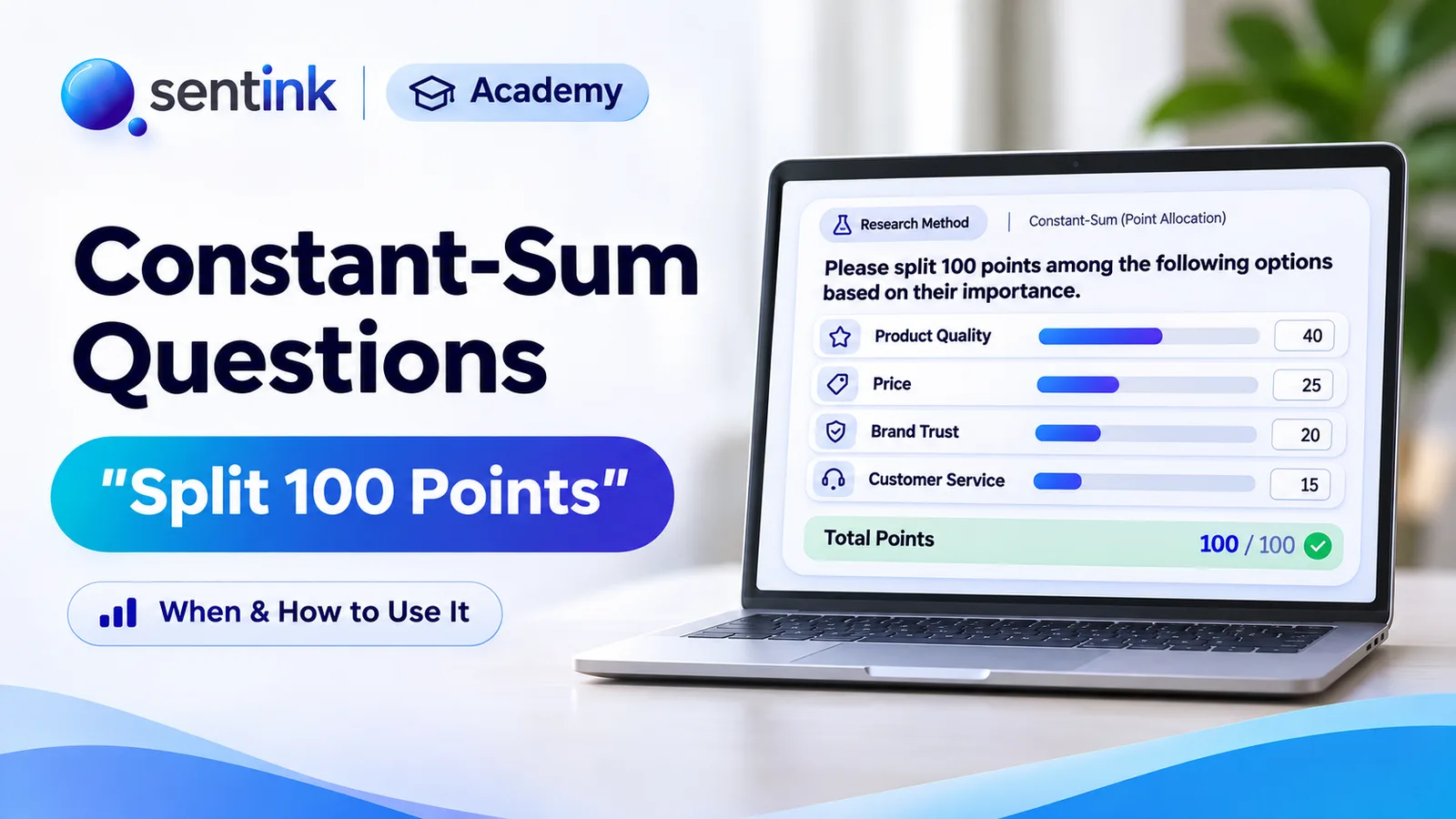
Learn when to use constant-sum (split 100 points) questions, how to set them up in Sentink with a live running total, and how to read the results.
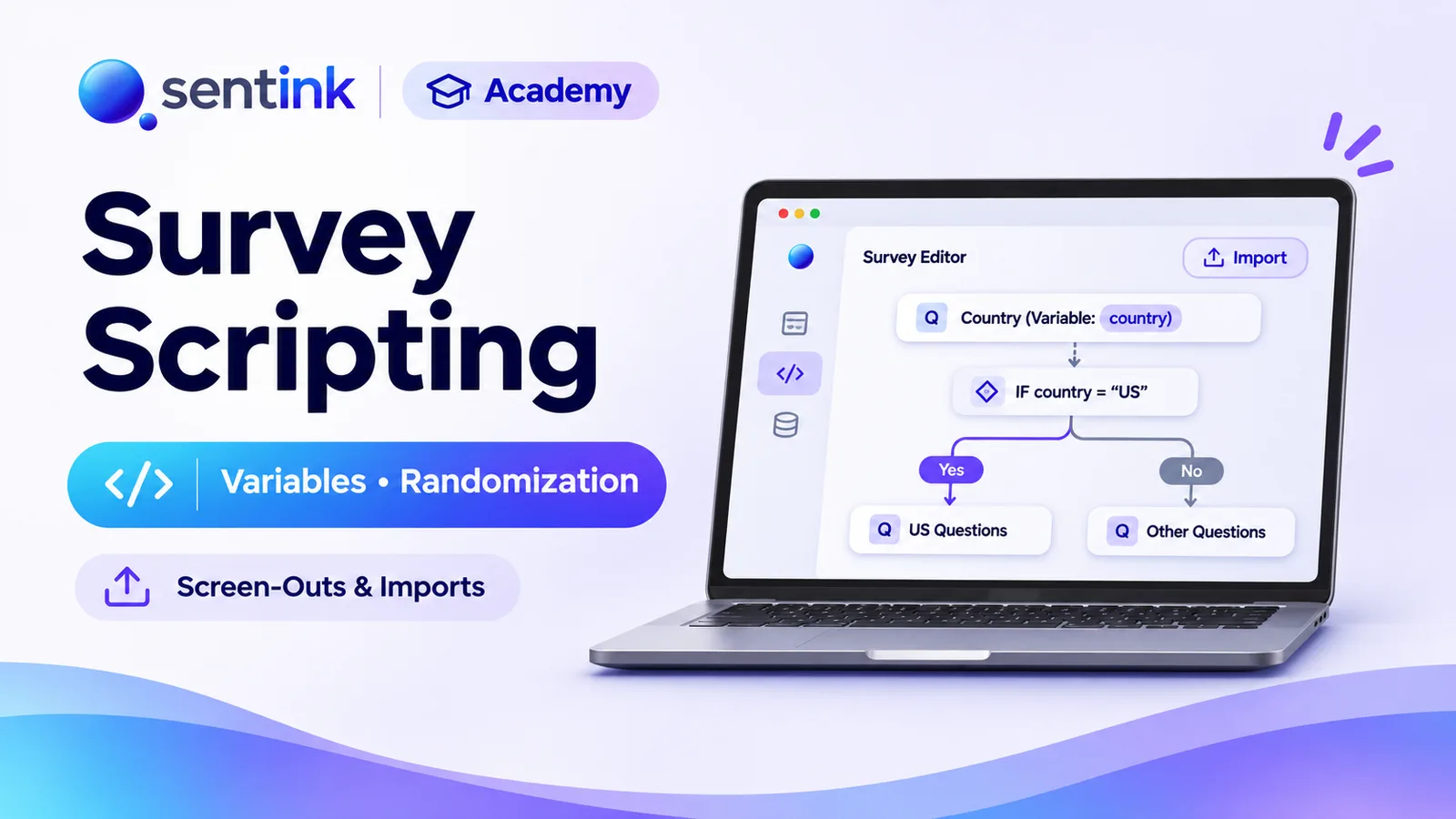
Script professional surveys in Sentink: import Word questionnaires as written, add variables, control randomization, screen out and redirect to panels.

Learn how to create executive-ready survey reports using AI, automate survey reporting workflows, summarize feedback, visualize insights, and modernize analytics with platforms like Sentink.

Learn how to build effective survey dashboards, visualize survey data, track customer insights, and use AI-powered analytics platforms like Sentink for intelligent reporting and decision-making.
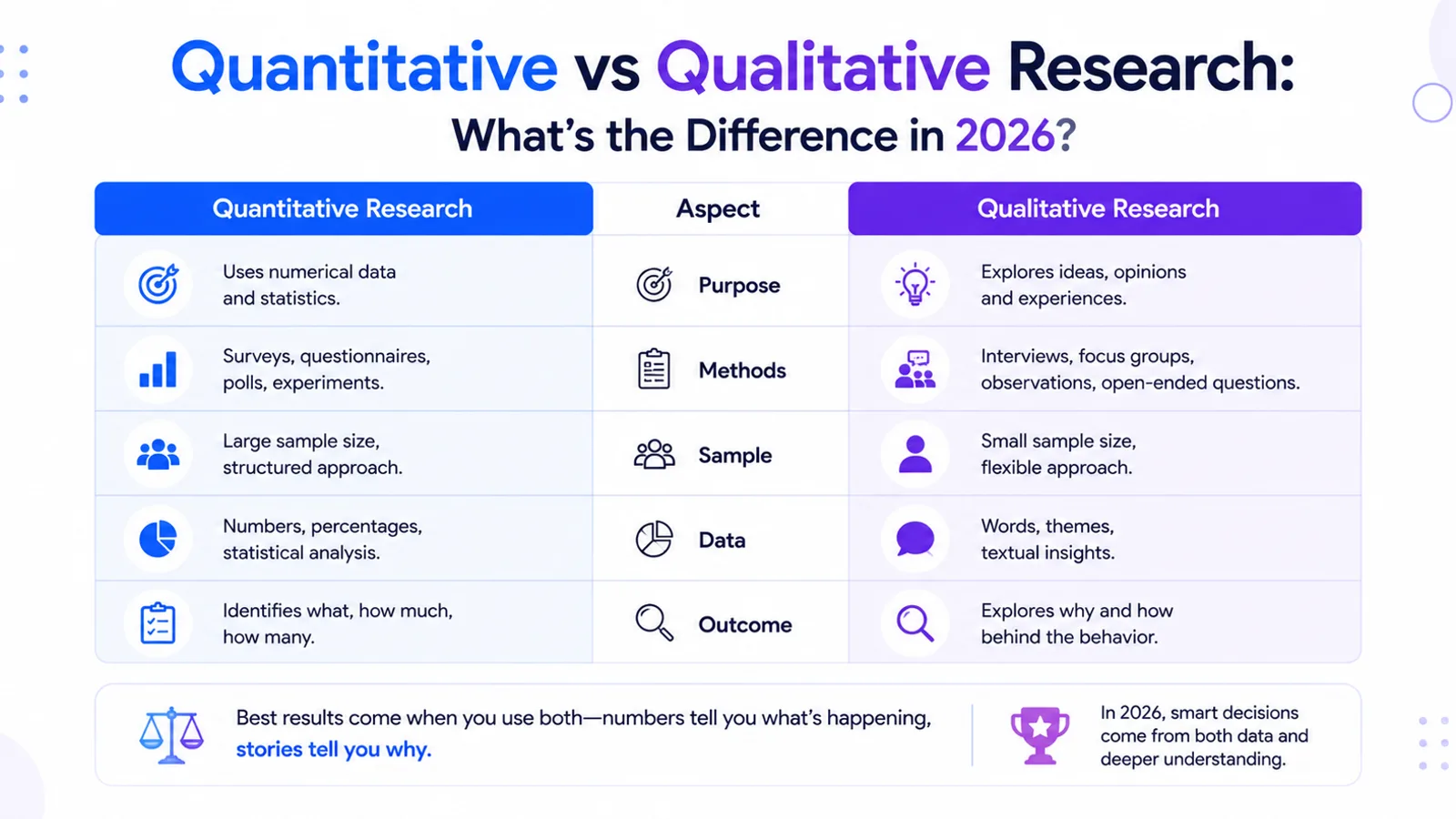
Learn the differences between quantitative and qualitative research, how organizations use both research methods, and how AI-powered platforms like Sentink modernize survey analytics and insights.
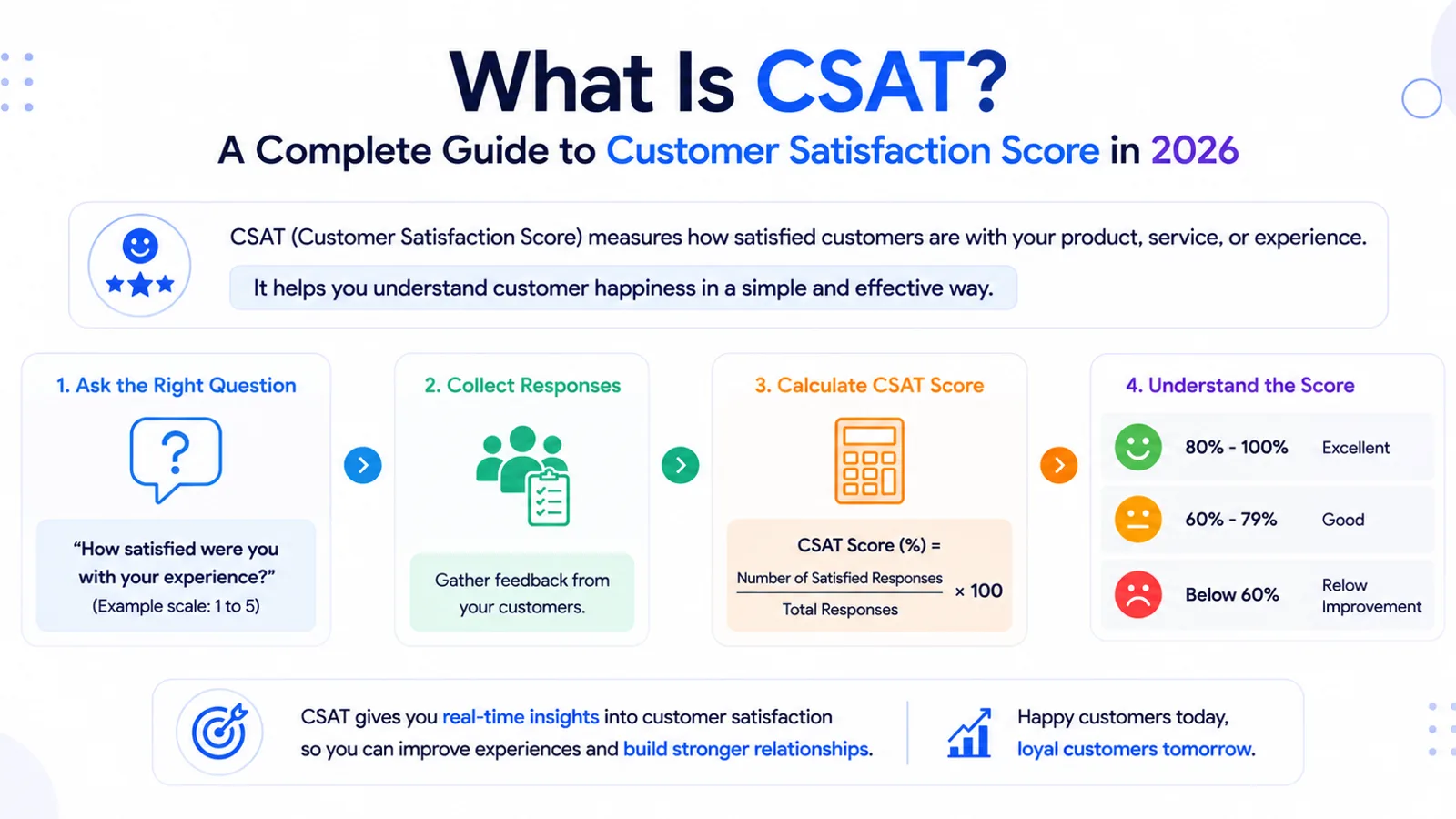
Learn what CSAT (Customer Satisfaction Score) is, how CSAT surveys work, how organizations measure customer satisfaction, and how AI-powered platforms like Sentink modernize customer experience analytics.