
Survey Scripting in Sentink: Variables, Randomization, Screen-Outs and Questionnaire Imports
Script professional surveys in Sentink: import Word questionnaires as written, add variables, control randomization, screen out and redirect to panels.
TL;DR
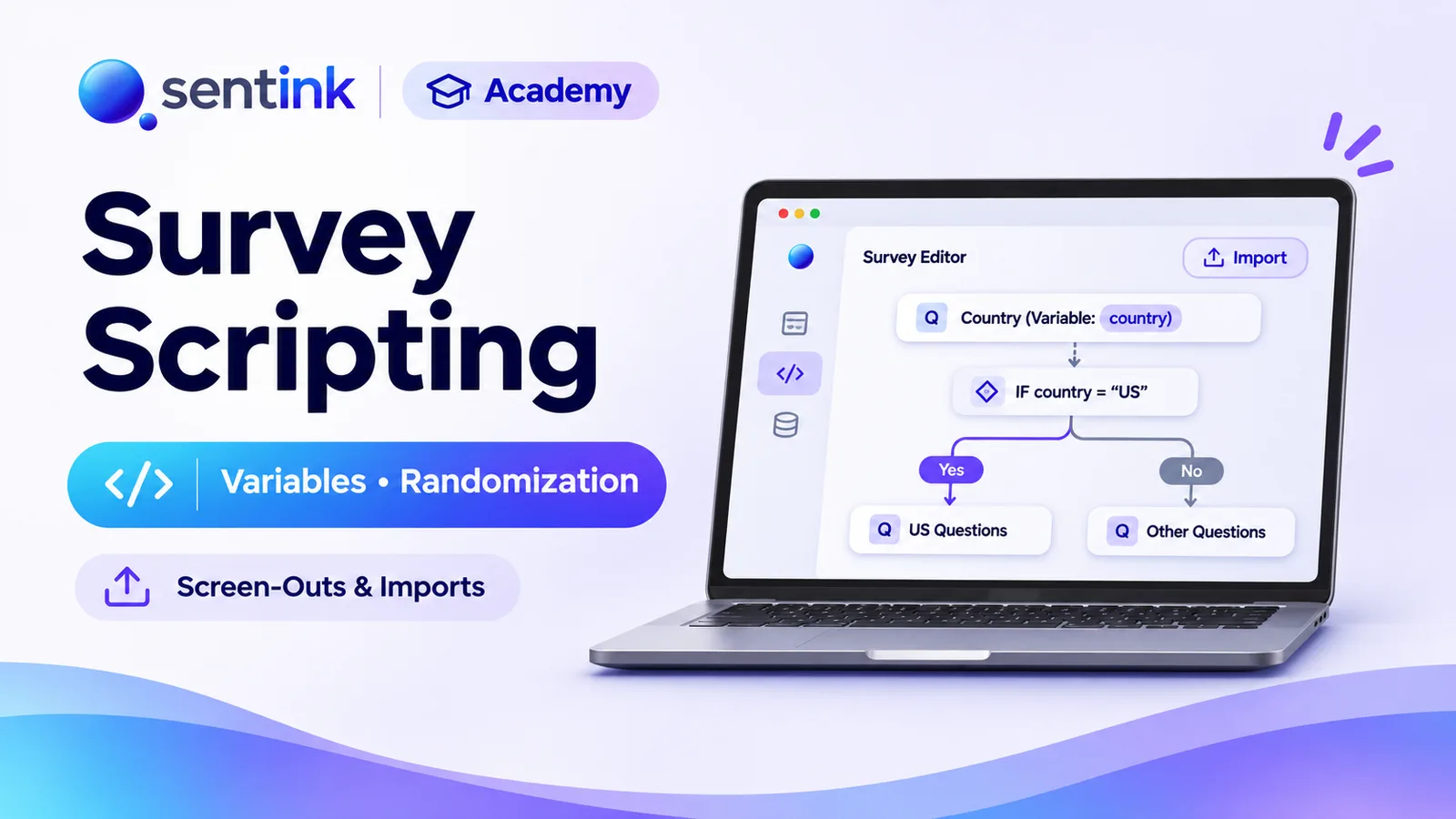
Sentink's scripting toolkit imports PDF, Word and Excel questionnaires exactly as written, adds no-code variables (counts, sums, averages, dates, ages, if/then values), controls randomization with anchored items and N-of-M panels, screens respondents out with panel redirects, and exports to SPSS .sav, Excel and CSV.
Key takeaways
- Questionnaires import with original question numbers as names, original answer codes and Q20_1-style grid rows.
- Scripting notes are kept for reference; add the logic itself in the Logic tab.
- Variables calculate counts, sums, averages, min/max, dates, ages and if/then values, can be piped with {name} and saved in exports.
- Randomization can keep chosen options, grid rows and columns in place, and exports the order each respondent saw.
- Screen-outs can be tested in Preview and send respondents to complete, screenout and quota full links with their ID.
- Exports include SPSS .sav with variable and value labels.
Most survey tools are built for simple forms. Professional research needs more: calculated values, careful randomization, screen-outs that send respondents back to the panel, and questionnaires that arrive from a client in Word and must be scripted exactly as written.
Sentink now includes a survey scripting toolkit for exactly this work — without writing code. This guide walks through what it can do.
1. Import a Questionnaire Exactly as Written
Research questionnaires usually start life as a Word or Excel document, with question numbers, answer codes and scripting notes agreed with the client. Retyping them is slow and error-prone.
In Sentink's AI composer, upload your questionnaire (PDF, Word .docx or Excel .xlsx/.xls) and keep "Keep my questionnaire exactly as written" switched on (it is on by default).
Sentink then builds the survey from your document as-is:
- Question numbers become question names — A1 stays A1, Q20 stays Q20
- Wording and order stay as in the file
- Answer codes from the document become the stored values
- Grid rows are named Q20_1, Q20_2, Q20_3…
- "Other" answers keep their code and get an optional text box
- "None" and "Don't know" are made exclusive in multiple-answer questions
- Sections become pages
- Scripting notes (such as "ASK IF Q3=1") are kept on the question as a reference for the scripter
Nothing is invented or redesigned. Imported questions are set as required and titles keep their numbers ("A1. …"), and you should add logic from the scripting notes yourself in the Logic tab — the notes are kept for reference, not turned into rules automatically.
Prefer a fresh design? Untick the option and the AI will design a survey based on the file instead.
2. Variables: Calculated Values Without Code
The Logic tab includes variables — values Sentink calculates from respondents' answers as they go. Choose what a variable should hold:
| Variable type | Example use |
|---|---|
| Number of options selected in a question | How many brands a respondent is aware of |
| Sum of numbers | Total monthly spend across categories |
| Average of numbers | Average rating across several items |
| Lowest / highest of numbers | The weakest or strongest score |
| Today's date | Stamp the interview date |
| Years since a date | Age from a date of birth |
| Days between two dates | Days since the last purchase |
| A value based on answers (if … then … otherwise) | Build a segment such as "Heavy / Medium / Light user" |
| Custom formula | Anything else |
Use variables everywhere
- Pipe them into any question or answer text by typing
{name}— for example "You said you know {brand_count} brands…" - Use them in logic rules to show, hide or skip questions
- Save them with each response so they appear as columns in your exports (on by default)
Dates are shown and saved as dd.mm.yyyy.
3. Piping and Copied Choices
- Pipe any answer into later questions with
{question_name}— including the text a respondent typed for "Other" - Copy choices from several questions — for example, build "Which of these have you bought?" from the brands selected in two earlier questions
- Exclude specific copied choices, and add the question's own choices after the copied ones
4. Randomization You Can Control
Randomizing answer order reduces order bias — but some items must stay put, like "None of these" or "Other".
- Keep chosen options in place while the rest are shuffled
- The same works for grid rows and grid columns
- Shuffle grid columns in single-choice grids
- The order each respondent saw is saved and exported as a "display order" column, so you can check or model order effects
Show N of M questions
For long batteries, a panel can show only some of its questions to each respondent — for example 5 of 15 statements:
- Random selection, or
- Balanced selection that shows the least-shown questions first, so every question gets similar coverage
The questions each respondent saw are exported with the response.
5. Question Types Built for Research
Numeric allocation (constant sum)
Ask respondents to split 100 points (or 100%) across items:
- Minimum and maximum per item
- A required total (exact, minimum or maximum)
- A live running total showing what's left, what's over and when it's "All set"
- Results show the average allocation per item, median and range, and how many respondents met the total rule — also in AI reports and PowerPoint
Ranking
Require respondents to rank every option, not just their top few.
Grids with an "Other (please specify)" row
Add an "Other (please specify)" row to single-choice grids. Respondents type what the item is and rate it, and Sentink checks that both parts are answered.
Formatting
Use bold, italic and underline in question and answer text to emphasise key words like NOT or LAST MONTH.
6. Codes That Behave Like a Scripter Expects
- New options are coded 1, 2, 3… automatically
- New grids get rows named Q5_1, Q5_2… and columns coded 1, 2, 3…
- An option called "Other" in a single or multiple choice question keeps its code and position (and its place in randomization), with an optional text box
- Special answers such as Other, None and Don't know can be used directly in logic conditions
- The question name is shown above each question in the builder and preview, so you always know what you're editing
7. Screen-Outs and Panel Redirects
Screen out in the Logic tab
Add a Screen out action to any rule: when the condition is met, the respondent is disqualified, sees a polite "you do not qualify" message, and is not counted as a complete. Responses are marked as Screened Out (alongside Quota Full and attention-check screen-outs).
Test screen-outs in Preview
Preview runs your screen-out rules exactly like the live survey. When a screen-out triggers, Preview shows which question caused it — and nothing is recorded.
Redirect respondents back to your panel
When you buy sample from a panel provider, respondents must be sent back with the right status. Under Share → Redirect after survey, set:
- A Complete link
- A Screenout link
- A Quota full link
Sentink reads the respondent ID from the start link and puts it back into each redirect link, so the provider can match every respondent. Respondents who fail an attention check go to the screenout link.
8. Exports Ready for Analysis
- SPSS (.sav) — download directly, with variable labels (question titles), value labels for coded answers and measurement levels
- Excel and CSV — including variables, display order columns, "Other" text and N-of-M selections
- GPS columns — latitude, longitude, accuracy, distance from the survey area and capture time for location-restricted surveys
Works in the Field App Too
Logic, variables, piping, randomization, N-of-M panels and screen-outs all run in the Sentink Field Android app, so offline face-to-face interviews follow the same script as your online survey.
Getting Started
- Upload your questionnaire in the AI composer with Keep my questionnaire exactly as written on
- Add variables and rules in the Logic tab
- Set randomization and N-of-M panels where needed
- Add screen-outs and test them in Preview
- Configure panel redirects under Share
- Launch, then export to SPSS, Excel or CSV
FAQ
Can I import a Word questionnaire without the AI changing it?
Yes. Keep "Keep my questionnaire exactly as written" switched on. Question numbers, wording, order and answer codes stay as in the file, and nothing new is added.
Are scripting notes like "ASK IF Q3=1" turned into logic?
No. Scripting notes are kept on the question as a reference. Add the matching rule in the Logic tab.
How do I pipe a calculated value into a question?
Create a variable in the Logic tab and type {variable_name} in any question or answer text.
Can I send respondents back to my panel provider?
Yes. Under Share, set Complete, Screenout and Quota full links. Sentink passes the respondent ID from the start link into each redirect.
Can I export to SPSS?
Yes. Download an SPSS .sav file directly, with variable labels, value labels for coded answers and measurement levels.
Transparent Cloud plans and private deployment—pick what fits your team.
Get Started FreePeople also read
Picked from the same category and shared topics.
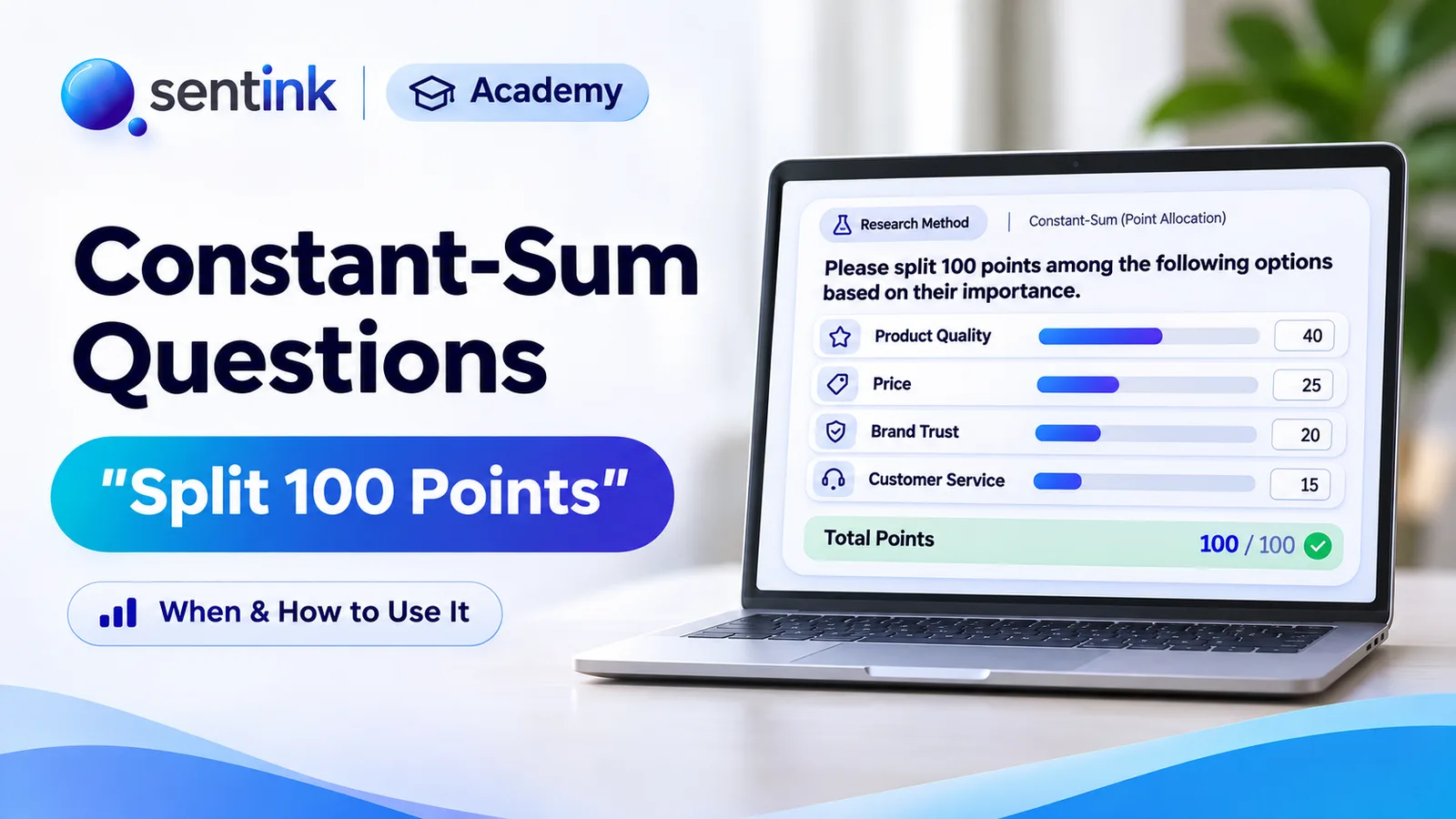
Learn when to use constant-sum (split 100 points) questions, how to set them up in Sentink with a live running total, and how to read the results.
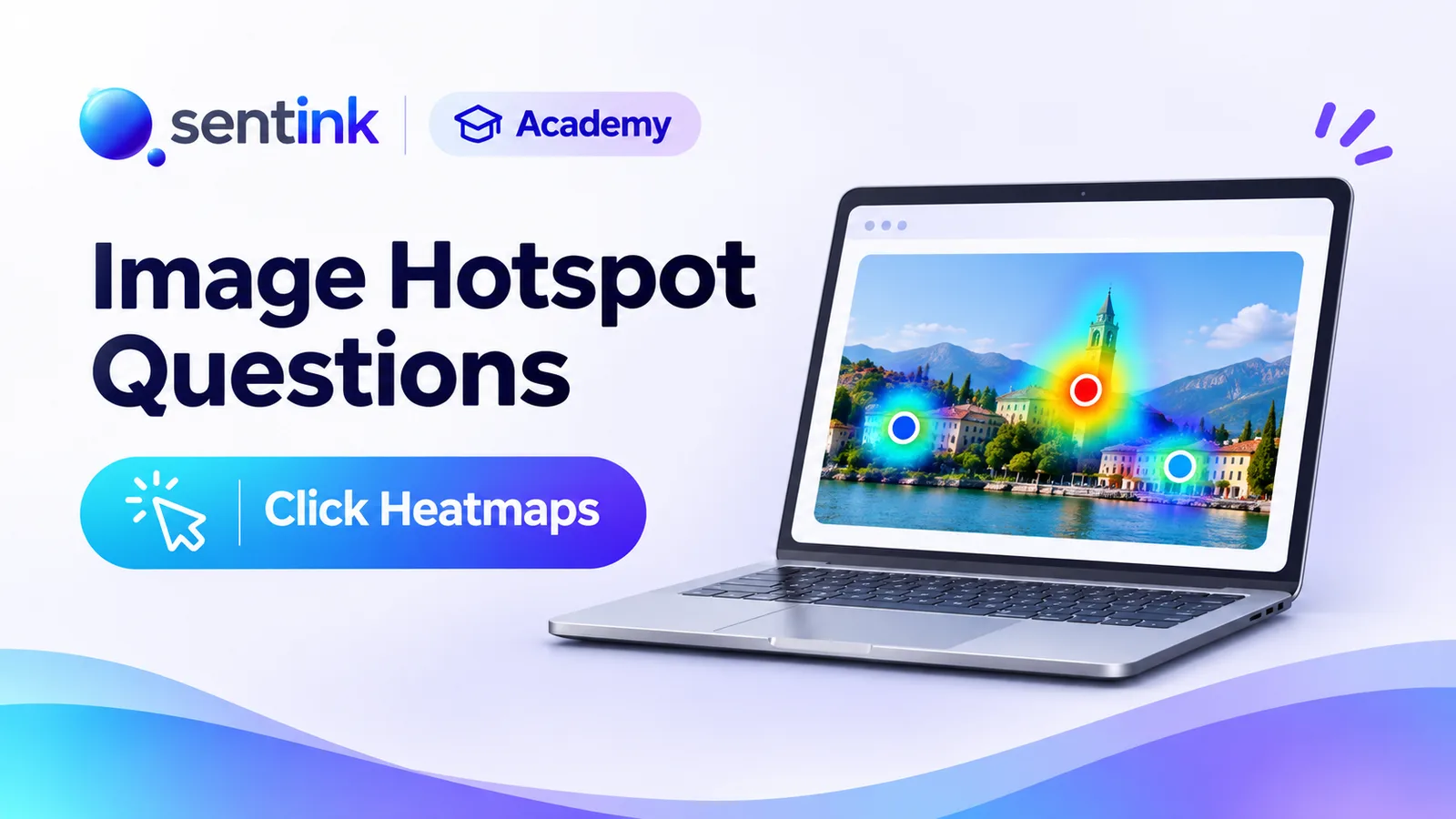
Let respondents click on an image and see every click as a heatmap. Use Sentink image hotspots for packaging, ad, UX and shelf testing.

Learn how to create executive-ready survey reports using AI, automate survey reporting workflows, summarize feedback, visualize insights, and modernize analytics with platforms like Sentink.

Learn how to build effective survey dashboards, visualize survey data, track customer insights, and use AI-powered analytics platforms like Sentink for intelligent reporting and decision-making.
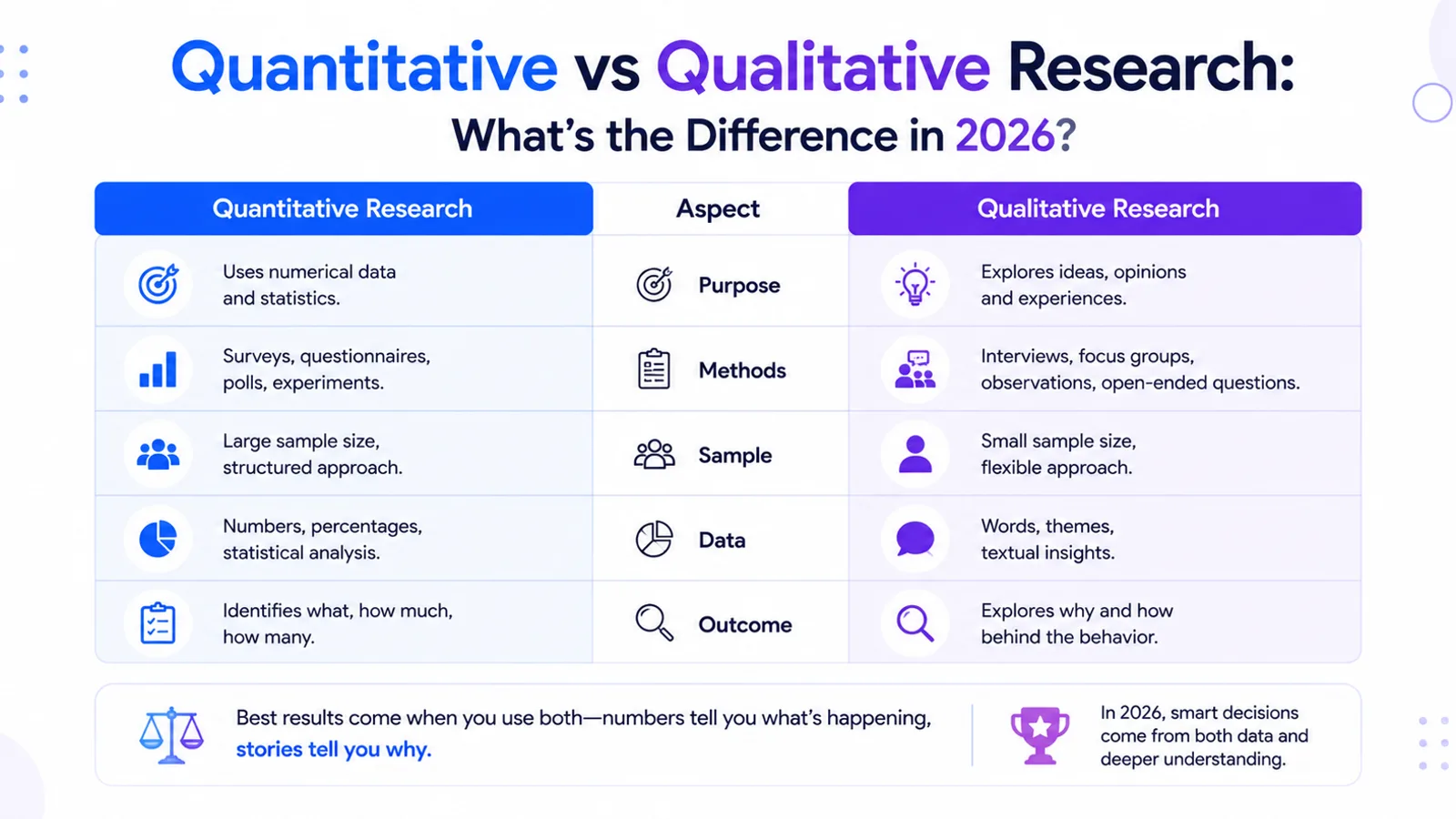
Learn the differences between quantitative and qualitative research, how organizations use both research methods, and how AI-powered platforms like Sentink modernize survey analytics and insights.
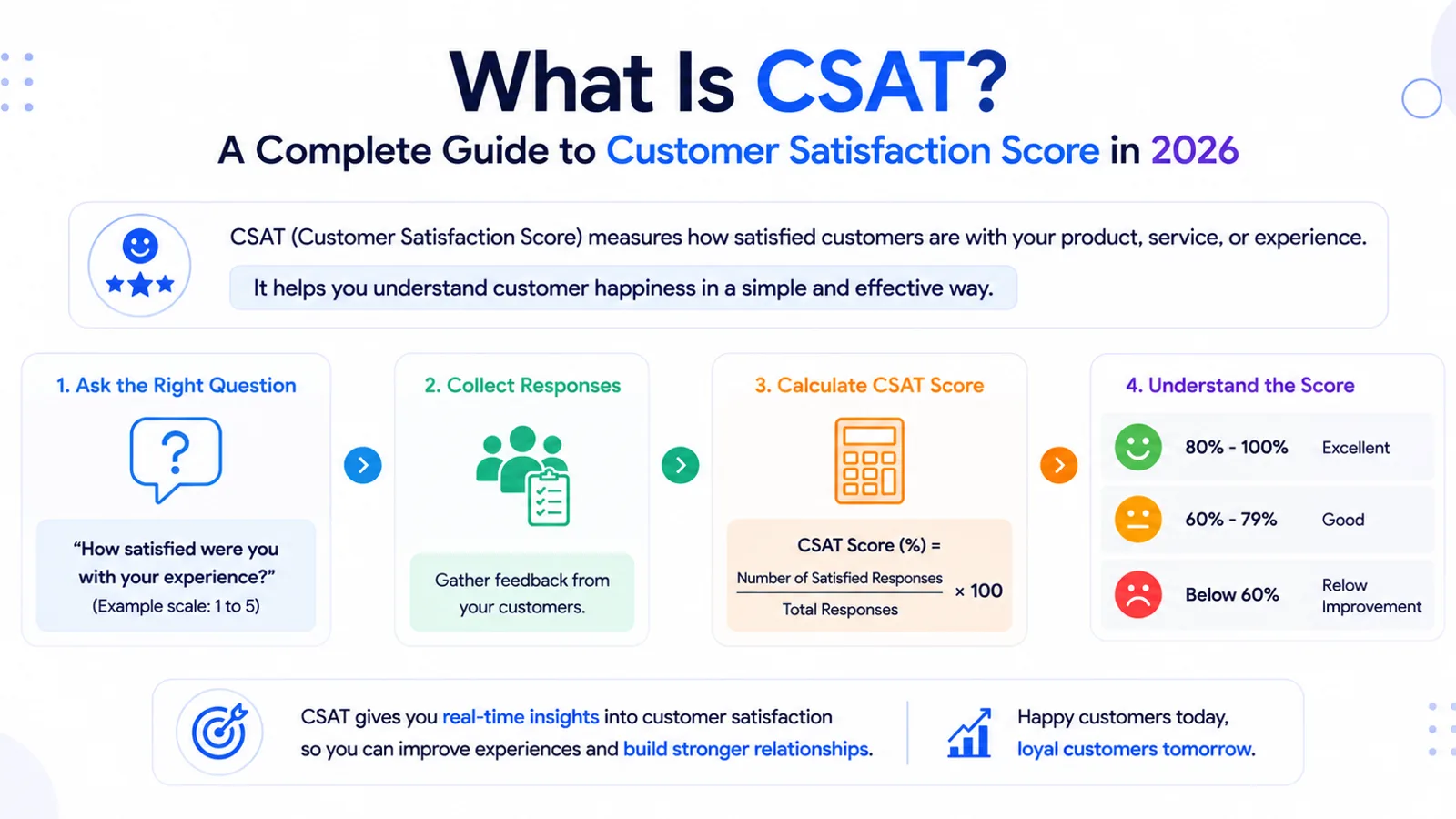
Learn what CSAT (Customer Satisfaction Score) is, how CSAT surveys work, how organizations measure customer satisfaction, and how AI-powered platforms like Sentink modernize customer experience analytics.