
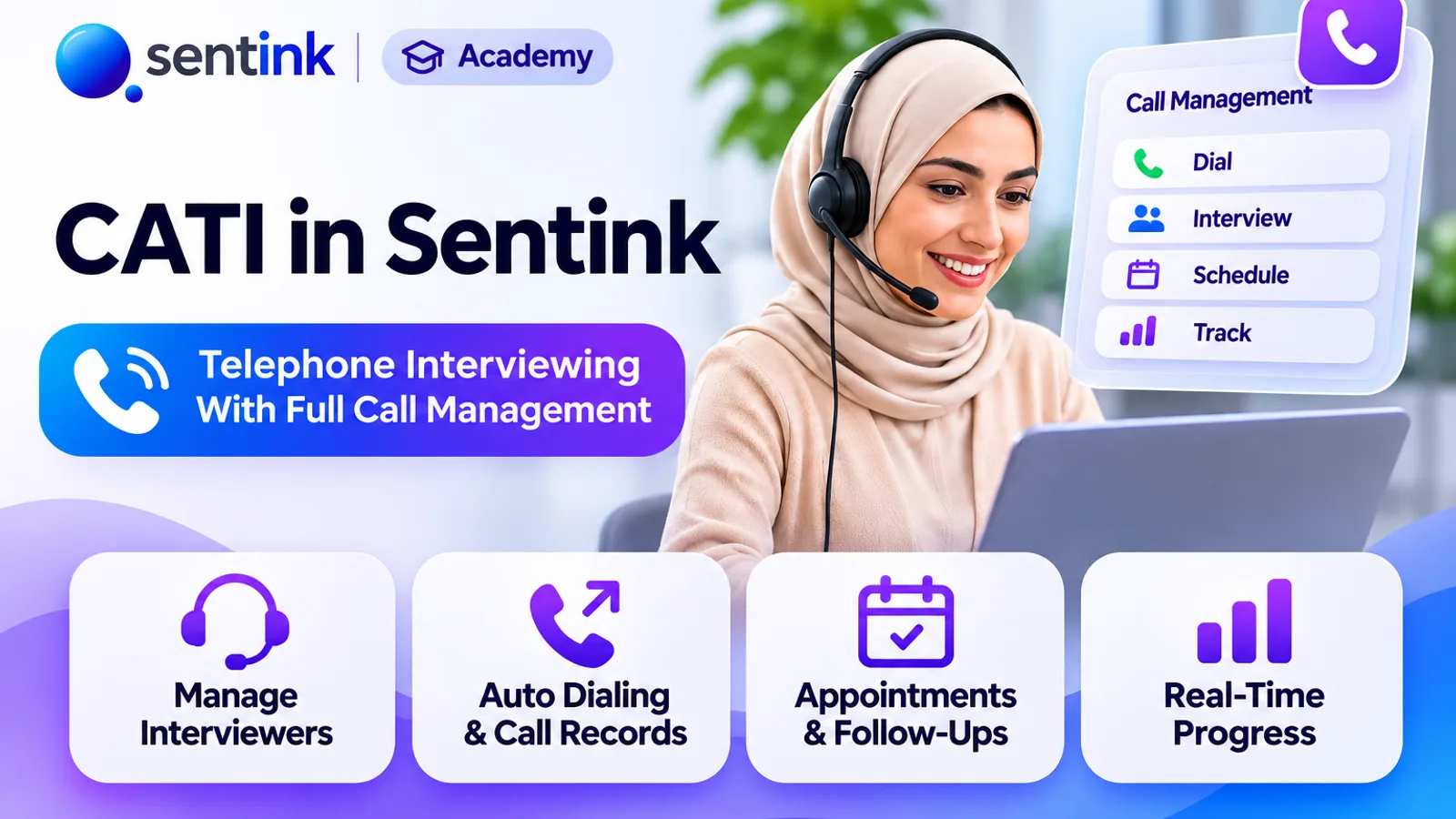
CATI in Sentink: Telephone Interviewing With Full Call Management
Run telephone surveys with Sentink CATI: upload samples, assign interviewers, manage call statuses, retries, callbacks and quotas, and monitor productivity.
TL;DR
Sentink's CATI module manages telephone interviewing around your own dialer. Upload a respondent list with automatic phone cleaning, assign interviewers by language group, and hand out one number at a time with locking. Record call statuses with retry rules, book callbacks with reminders, share quotas with online responses, and monitor productivity with exports and an audit trail.
Key takeaways
- Interviewers place calls in your existing dialer; Sentink manages samples, outcomes, callbacks and quotas.
- Upload CSV or Excel lists up to 50,000 rows, with phone numbers converted to international format and every issue shown before import.
- One number at a time, with locking so two interviewers never get the same respondent.
- Every call status is editable, with rules to start the survey, retry, book a callback, reroute or close.
- Quotas are shared with online responses and checked before numbers are handed out.
- Supervisors get team productivity, a call log, bulk sample actions, exports and an audit trail.
Telephone interviewing is still one of the most reliable ways to reach people who don't answer online surveys: older audiences, business decision-makers, rural households and markets where online panels are thin. But running a phone project on spreadsheets is painful. Who has called which number? Which callbacks are due? Is the Riyadh quota full yet? Did two interviewers just dial the same person?
CATI in Sentink (computer-assisted telephone interviewing) brings the whole operation into one place. Upload your respondent list, assign interviewers, and track every call, callback and quota. Interviewers place calls in your existing dialer or phone system, and Sentink manages everything around the call.
How CATI Works in Sentink
Sentink's CATI module is built around three roles:
- Supervisors set up projects, upload samples, manage interviewers, and monitor progress, quotas and productivity
- Interviewers get one number at a time, place the call in their own dialer, read the script, run the questionnaire, and record what happened
- The questionnaire is any Sentink survey, so logic, quotas, screen-outs and validation work exactly as they do online
Completed telephone interviews are saved as ordinary survey responses alongside your online responses.
1. Set Up a CATI Project
Create a new CATI project and choose the questionnaire it uses. The project name defaults to the questionnaire title.
A setup checklist guides you through getting the project calling:
- Questionnaire published
- Respondents uploaded
- Interviewers assigned
- Calling started
Projects move between Draft, Calling, Paused and Closed, so you can pause calling at any time, for example overnight or while you fix the script.
2. Upload Your Respondent List
Upload a CSV or Excel file (up to 50,000 rows per file) and map the columns:
- Phone number (required)
- Sample ID / PIN
- Respondent name
- Language
- Extra fields for quotas, prefilling and exports
Sentink recognises common column names in English and Arabic automatically.
Phone numbers cleaned for you
Phone lists are messy. Sentink converts numbers to international format using the project's default country code, and handles:
- Local numbers with a leading 0
- Numbers starting with 00 or +
- Arabic-Indic digits
- Excel artefacts such as ".0" and scientific notation
Check before you import
Before anything is imported, Check rows shows a preview and every row that needs attention, so nothing is dropped silently:
- Rows with no phone number or a duplicate sample ID are not imported
- Invalid or duplicate phone numbers are imported as excluded, so they're never called, and the first copy of a duplicate stays callable
You can upload more later without touching earlier records or call history, or add a respondent by hand, with the option to call them before the rest of the list.
Prefill from your sample
If an extra field has the same name as a survey question, its value prefills that question. Region, customer segment or account type can then be ready when the interview starts.
3. Build Your Interviewer Team
Invite interviewers to your workspace and add them to the project. Each interviewer can belong to language groups (Arabic and English by default) and a station or team.
Interviewers only see the projects they're assigned to and the numbers allowed for their groups. Supervisors can see everything.
Who gets which number
Choose how numbers are handed out:
- Shared pool: interviewers take the next eligible number from a shared pool, one at a time
- Fixed lists: interviewers only get numbers assigned to them, plus priority numbers for their groups
Records are locked while someone has them open, so two interviewers can never get the same respondent.
4. The Interviewer's Calling Screen
Interviewers work from a focused calling console:
- One big button: Next eligible record (or press N)
- My appointments and priority numbers at the top
- Today's calls, completes and numbers ready
The order numbers arrive in
- The interviewer's own callbacks that are due
- Priority numbers for them or their groups
- Numbers assigned to them
- The shared pool for their groups
Within each step, priority numbers come first, then retries, then fresh numbers.
The contact card
For each respondent, the interviewer sees:
- The phone number with a Copy button to paste into the dialer
- Attempt number (for example "Attempt 2 of 6") and call history
- Imported fields and any appointment notes
- The introduction script to read before choosing an outcome
The interviewer places the call in their dialer, then records what happened.
5. Call Statuses and Retries
Outcomes are grouped so interviewers find them fast: Spoke to someone, Refused, No answer / busy, Number problem, Not eligible and Other. Interviewers can press 1–9 to choose a status and Enter to save.
Each status has a rule that decides what happens next:
| Rule | What happens |
|---|---|
| Start questionnaire | Opens the survey right away |
| Close, do not call again | The number is finished (for example refused or wrong number) |
| Back to pool after retry time | The number returns after a set number of minutes (for example busy or no answer) |
| Personal callback | Books an appointment with the same interviewer |
| Route to another language group | Hands the number to, for example, the Arabic or English team |
| Hold for supervisor review | Parks the number until a supervisor decides |
Sentink starts each project with a ready-made list of common statuses, such as Yes, continue, Refused, Busy, No answer, Switched off, Wrong number, Disconnected and Language barrier. Every status is editable per project: code, label, rule, retry time and target group.
Calling rules
In Settings → Calling rules:
- Maximum calls per number before it's closed (booked callbacks still go ahead)
- Default retry interval for statuses without their own
- Contact card hold and interview hold times, so abandoned records return to the pool
- Default country code
- Calling hours with time zone and days. Outside these hours, only booked callbacks are handed out
6. Callbacks and Reminders
When a respondent asks to be called later, the interviewer books a callback with a date, time and note. It becomes a personal appointment that only that interviewer receives, and supervisors can reassign it.
Interviewers never miss one:
- Callbacks due within the hour or overdue appear across all their projects, on the projects list and on the calling screen
- A reminder pops up shortly before each callback is due
- Call now opens the record directly
If a respondent has to stop mid-interview, the interviewer can book a callback and pause the interview. Answers so far are kept, and the interview resumes from where it stopped.
7. Running the Questionnaire
Choosing a "start" status opens the survey inside the calling screen. Answers save automatically, and the interview goes through the same submission as any online response, so validation, logic, quotas and screen-outs all apply.
Endings are handled for the interviewer:
- If the respondent answers No to the consent question, the interview is saved as a refusal and the next number opens
- If logic screens the respondent out, it's recorded as a screen-out and the next number opens
- If the respondent's quota cell is full, it's recorded as over-quota
- Otherwise: "Interview complete — thank you!"
Preview as interviewer
Supervisors can preview as interviewer to see the calling screen exactly as interviewers will, in read-only mode, before going live.
8. Quotas Across Phone and Online
CATI uses the same quota engine as your survey, so targets apply to completed interviews across every channel: phone and online count toward the same totals.
- Set targets on imported fields (for example region or channel). These are checked before a number is handed out, counting interviews in progress, so you don't over-call full cells
- Targets on survey answers are checked when the interview is submitted
- Pause a quota cell with a reason when you need to
- When every quota is full, no more numbers are released
9. Supervisor Monitoring and Control
Overview
See respondents, numbers ready to call now, callbacks due, interviews in progress, completion rates, where every number stands, and quota progress.
Team productivity
Compare interviewers across projects for today, 7 days, 30 days or all time: calls, completes, refusals, no-contacts, talk minutes and last call, with CSV export.
Sample management
Filter the sample by status, group, interviewer, last outcome, upload batch, "not called" or priority, then act in bulk:
- Assign to an interviewer or group, optionally as high priority
- Back to pool, exclude (with a required reason, for example a do-not-call request) or re-include
- Release lock when someone left a record open
- Reopen closed records or reassign callbacks
Call log and audit trail
- The call log records every attempt, including unsuccessful ones, with filters and what happens next
- The supervisor audit trail records changes to statuses, quotas, assignments, exclusions and exports, and entries can't be edited
Exports
Download CSV or Excel (Arabic-friendly):
- Master sample list: status, attempts and interview link for every record
- Call log: one row per call
- Quota report: target, achieved, remaining and in progress
- Completed interviews: answers joined to sample fields, with interviewer, status and duration
Call durations come from on-screen time or minutes entered by interviewers, because calls take place in your own dialer.
Who Uses CATI in Sentink?
- Market research agencies running telephone tracking and ad-hoc studies
- Call centres running customer satisfaction and NPS callbacks
- Government and public sector teams running citizen surveys
- NGOs reaching communities with low internet access
- B2B research teams reaching decision-makers by phone
Getting Started
- Create a CATI project and choose your questionnaire
- Upload respondents and check the rows
- Add interviewers and set allocation and calling rules
- Review call statuses and quotas
- Preview as interviewer, then start calling
CATI is enabled per workspace. Contact the Sentink team to turn it on for your organisation.
FAQ
Does Sentink CATI make the phone calls?
Interviewers place calls in your own dialer or phone system, copying the number from the contact card. Sentink manages the sample, outcomes, callbacks, quotas and the questionnaire.
Can two interviewers call the same respondent?
No. A record is locked while an interviewer has it open, so each respondent goes to only one interviewer at a time.
Can I customise call statuses and retry times?
Yes. Every status is editable per project, including its code, label, rule, retry time and target group, and you can set maximum attempts and calling hours.
Do phone and online responses share quotas?
Yes. CATI uses the survey's quota engine, so targets apply to completed interviews across every channel.
How do I get CATI?
CATI is enabled per workspace. Contact the Sentink team to turn it on for your organisation.
Transparent Cloud plans and private deployment—pick what fits your team.
Get Started FreePeople also read
Picked from the same category and shared topics.
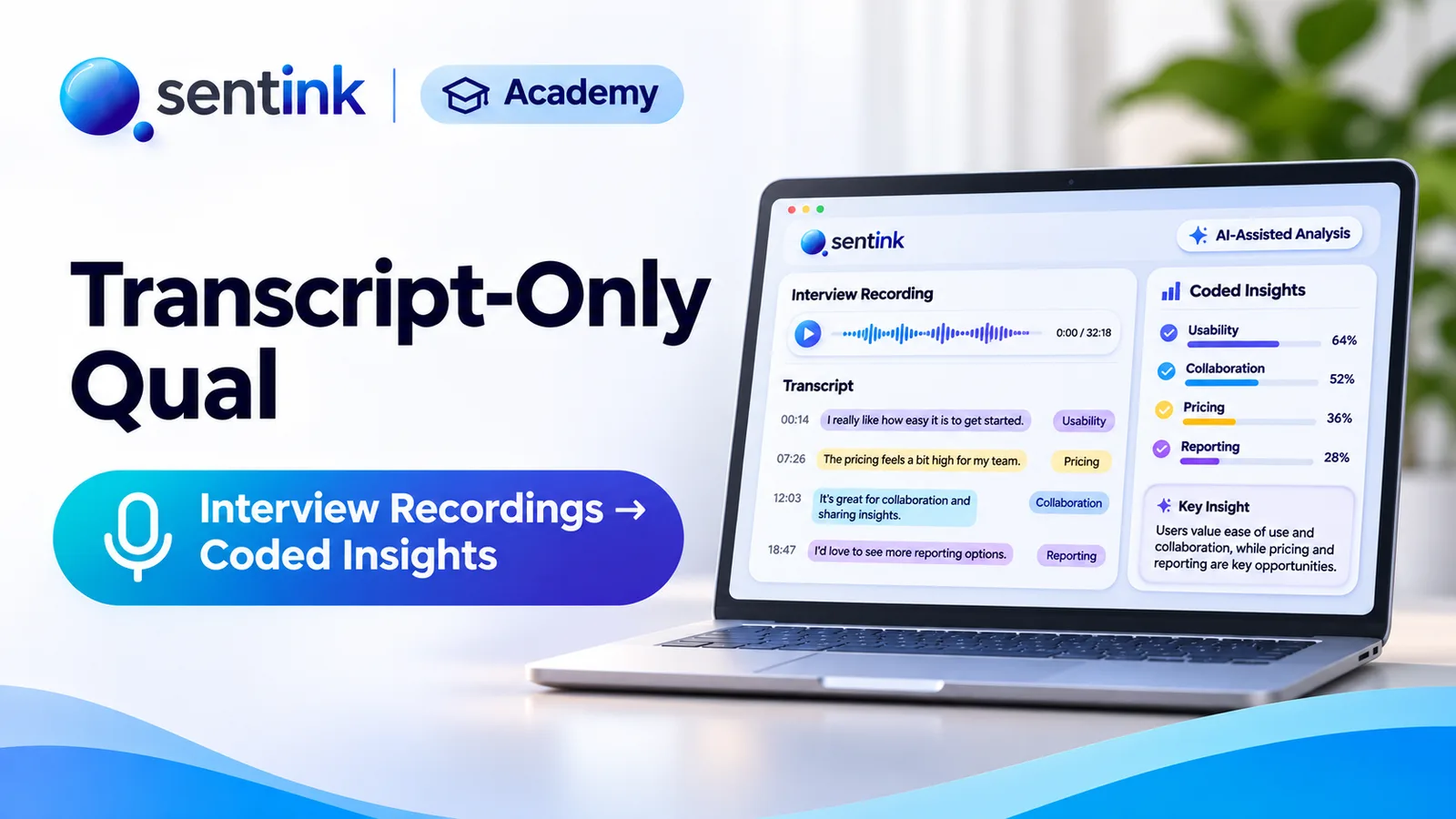
Upload interview or focus group recordings to Sentink and get speaker-separated transcripts, translated downloads, AI reports and coded themes.

Collect surveys offline on Android with Sentink Field: native question screens, signatures, photos, GPS checks, voice recording and sync.

Run online focus groups and interviews in the browser, or upload recordings, and get AI-enhanced transcripts and insight reports in Sentink.

Run online diary studies in Sentink: scheduled and event-based tasks, photo, video and voice entries, follow-up questions and AI insights.

Run private research communities in Sentink: nine discussion formats, five visibility modes, groups, moderation tools and in-community diaries.

Run home use tests in Sentink with blinded product codes, Williams Latin square rotation, gated tasks and per-product results with order effects.